If students have left your school, you can reuse their licences in ReadingDoctor® by resetting those student accounts, then reallocating the free spots.
**Important**: Resetting is permanent and deletes that student’s data, so only do this when you no longer need their progress records.
Steps:
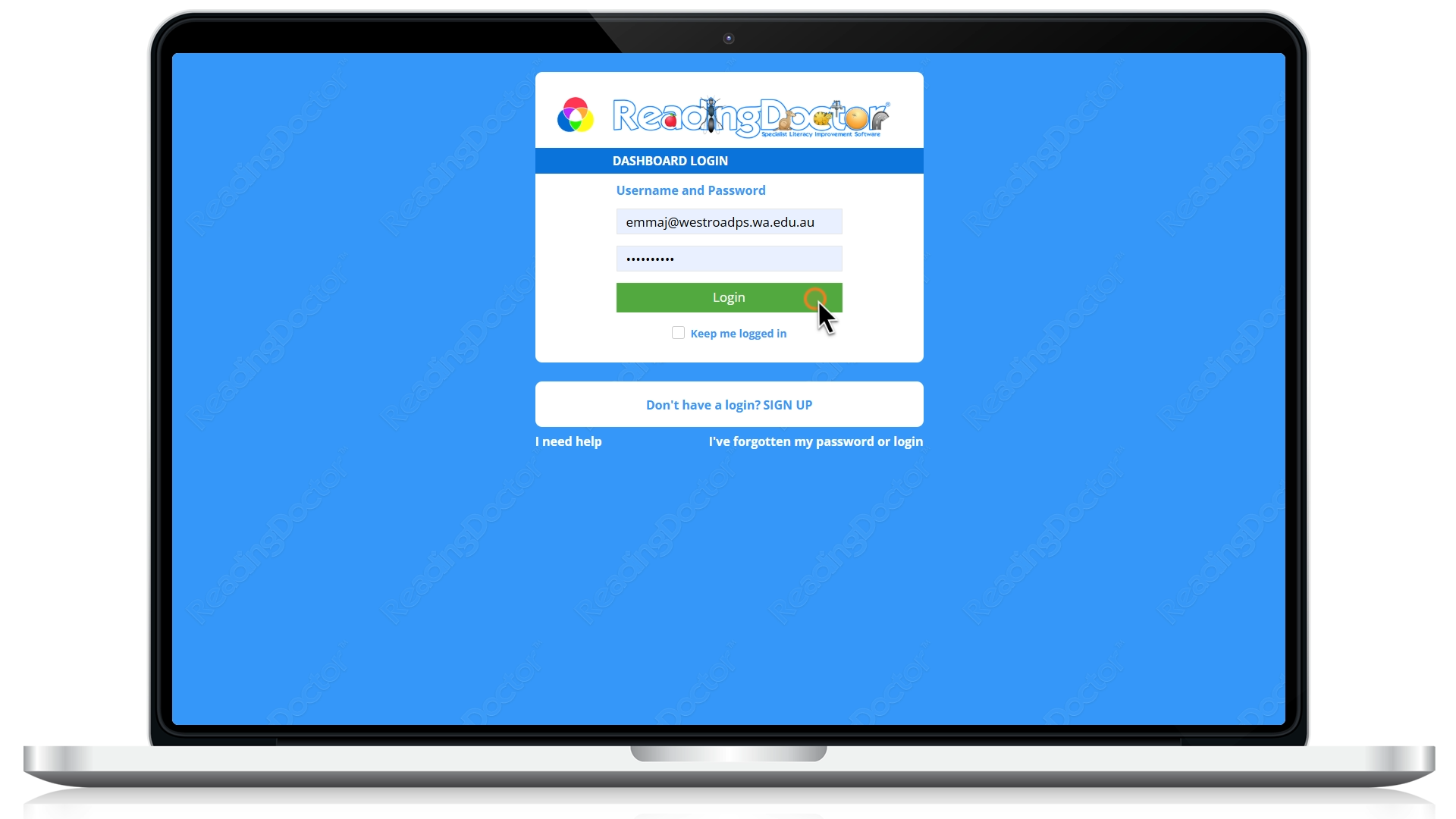
- Log in to the ReadingDoctor® Dashboard: https://dashboard.readingdoctor.com
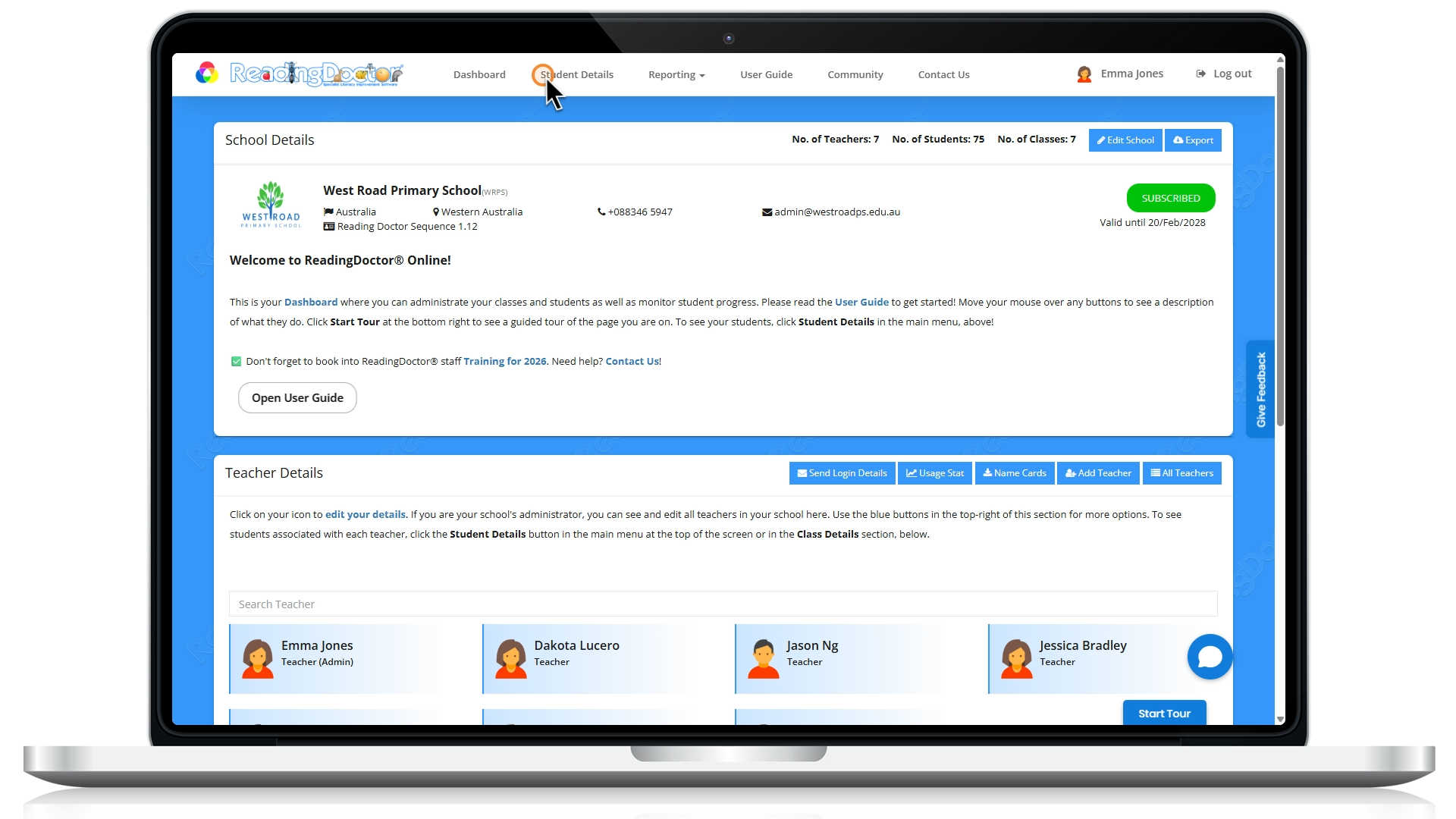
- Open Student Details.
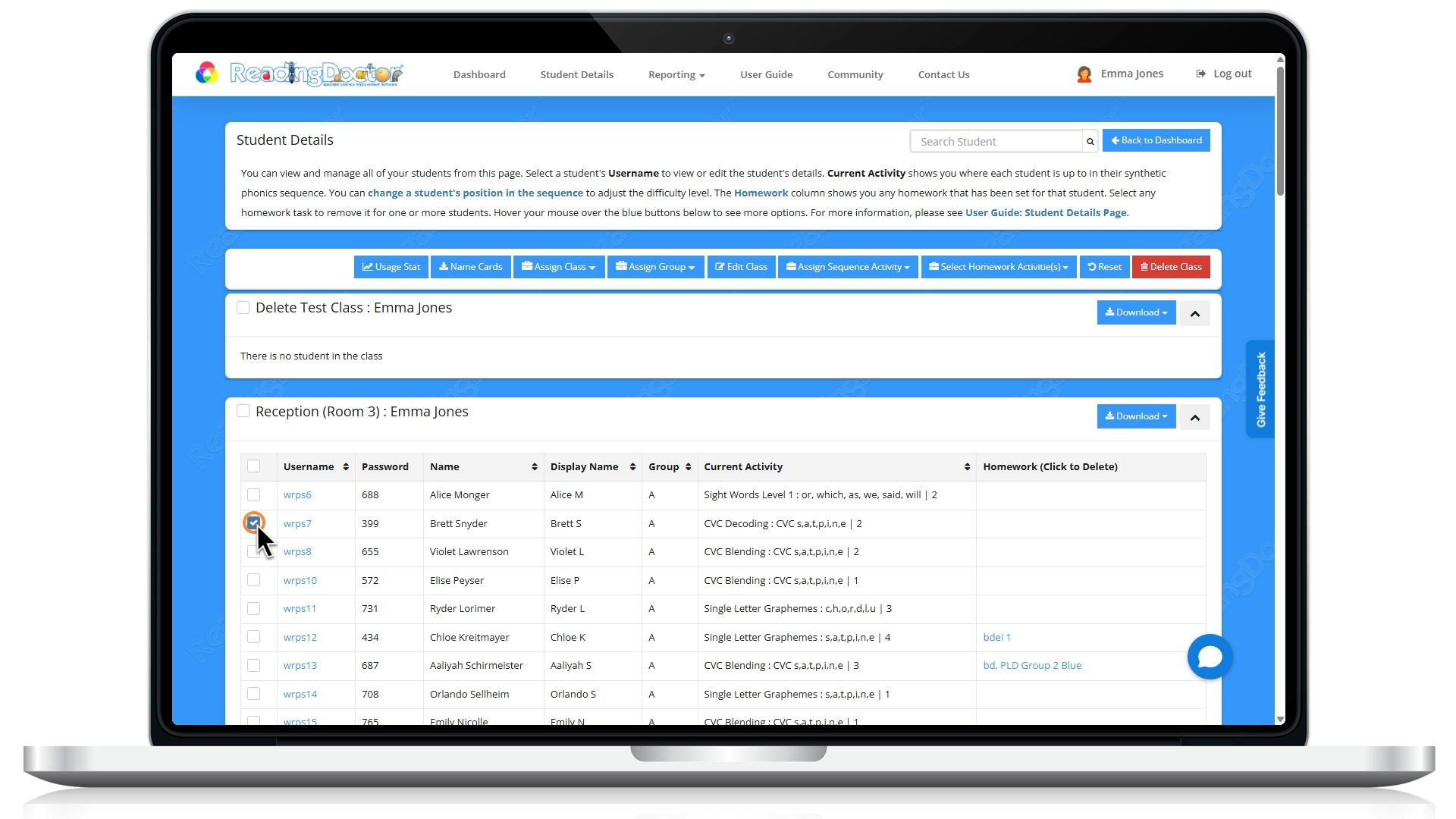
- Select the student who has left.
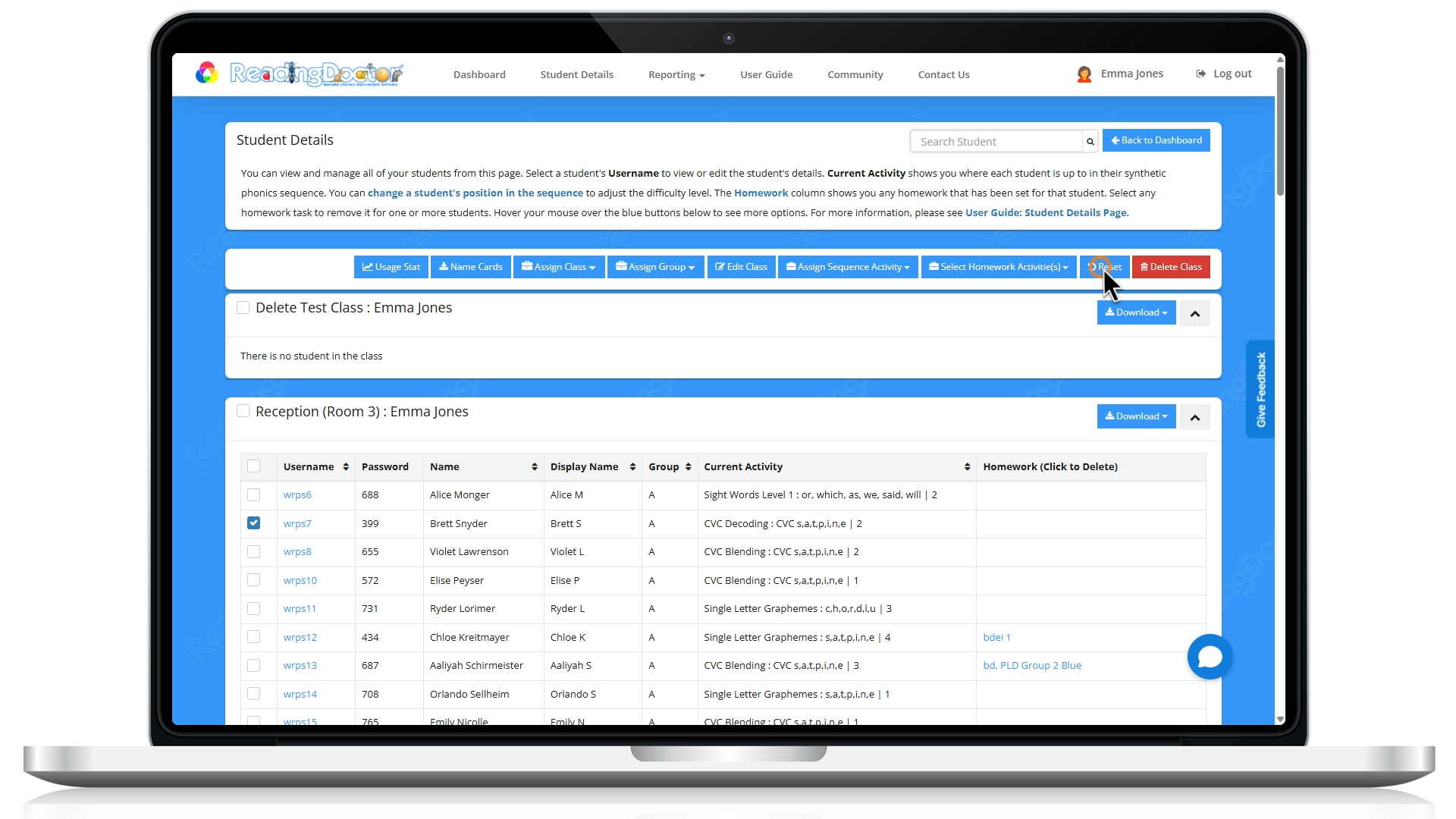
- Click Reset(**IMPORTANT** this is a permanent action and cannot be undone).
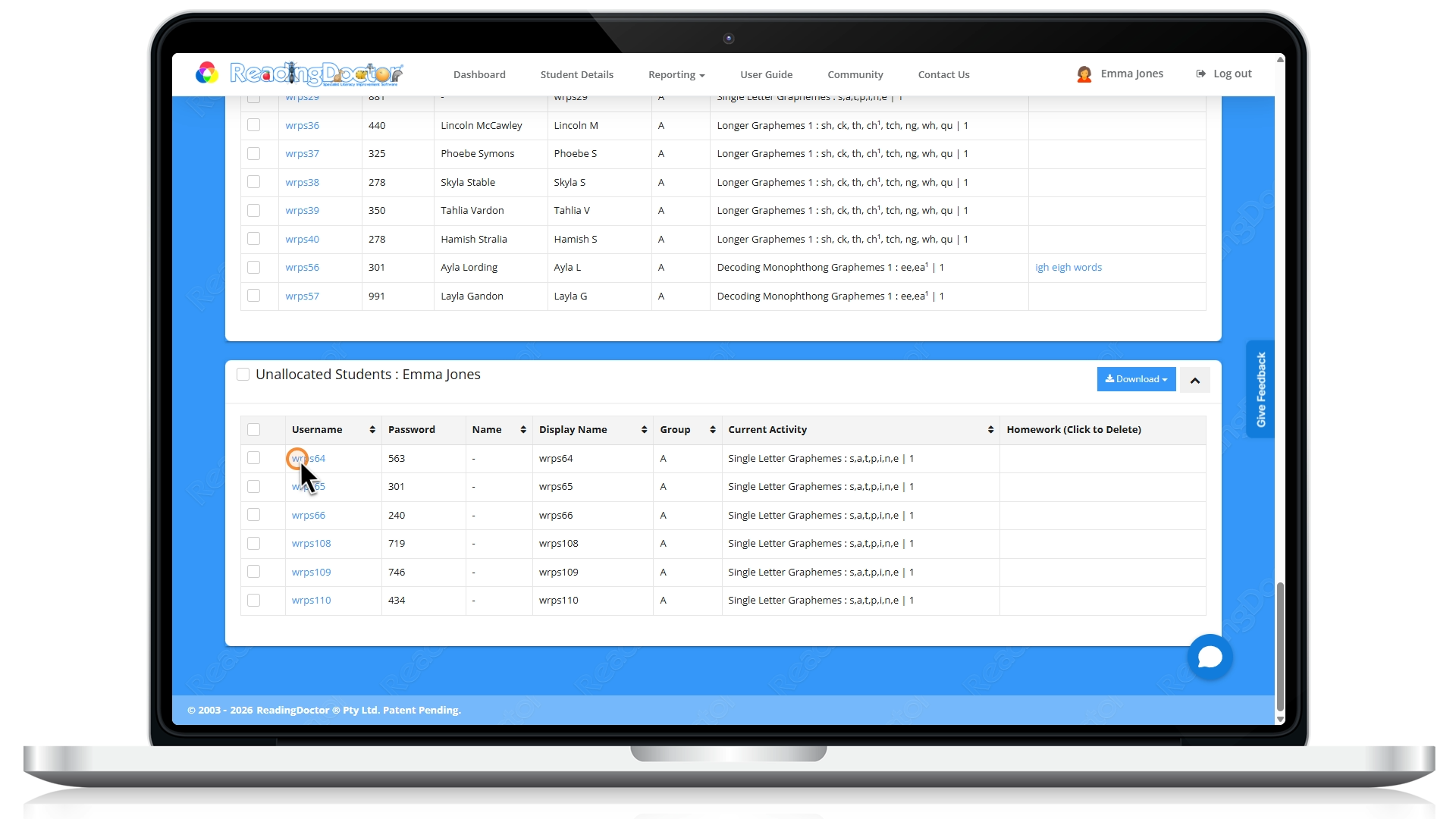
- Scroll down to the Unallocated Studentsclass (shown at the bottom when spare licences are available) and click an unallocated username
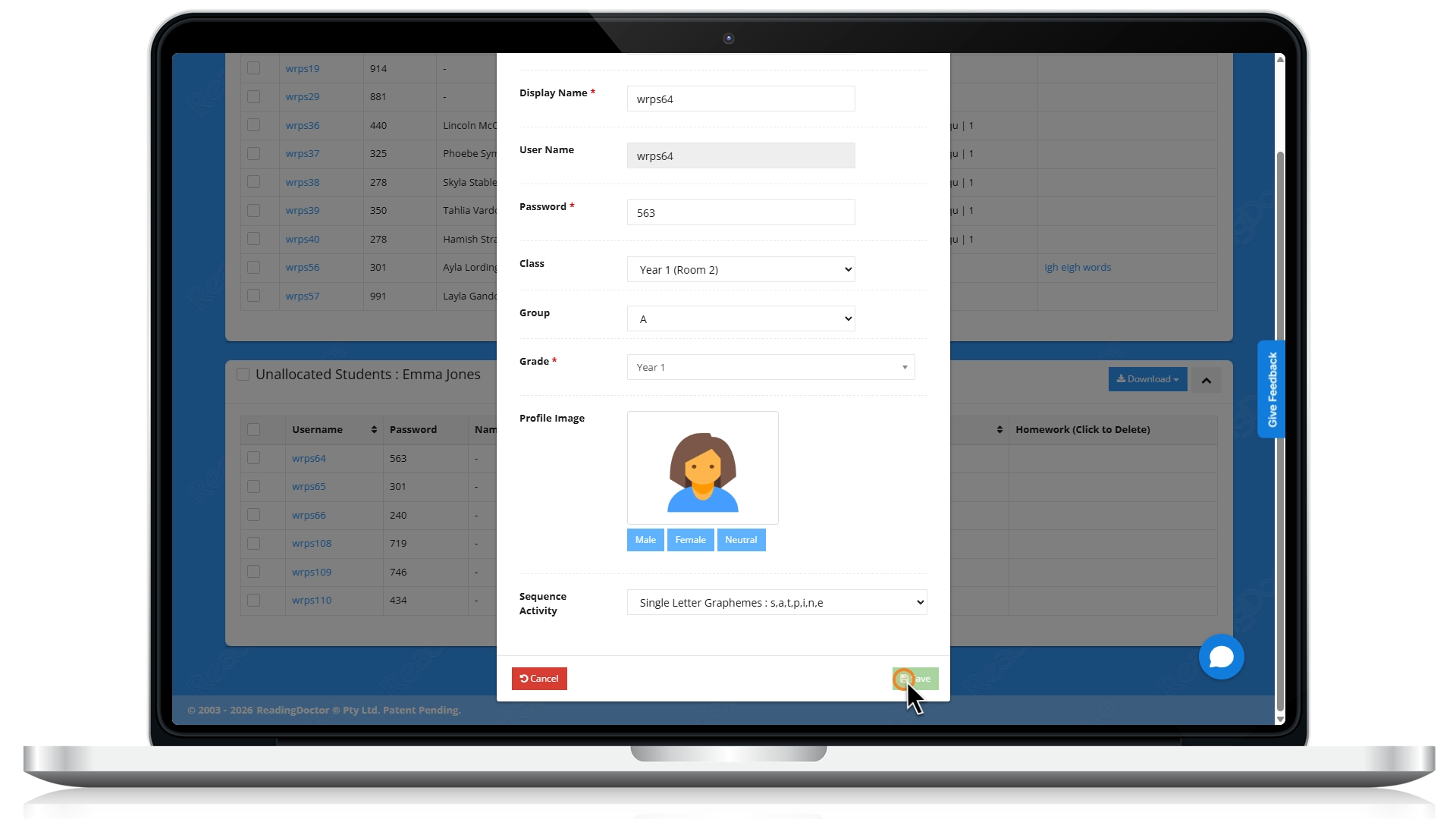
- Enter the new student’s details, assign class/year level, then click Save.
If you cannot see Unallocated Students, either there are no spare licences available, or your account does not have ReadingDoctor® Administrator permissions.
If you need more active licences (i.e. you want to increase the number of students who can use the program simultaneously rather than reusing existing student seats), please contact us.
Was this article helpful?
That’s Great!
Thank you for your feedback
Sorry! We couldn't be helpful
Thank you for your feedback
Feedback sent
We appreciate your effort and will try to fix the article