How to assign students to a group
Use this guide to assign selected students to Group A, B, or C from Student Details.
Requirements
- Account type: ReadingDoctor® Administrator or teacher with Student Details permissions
- Dashboard login details for the account above
- Access to the class in Student Details
Steps
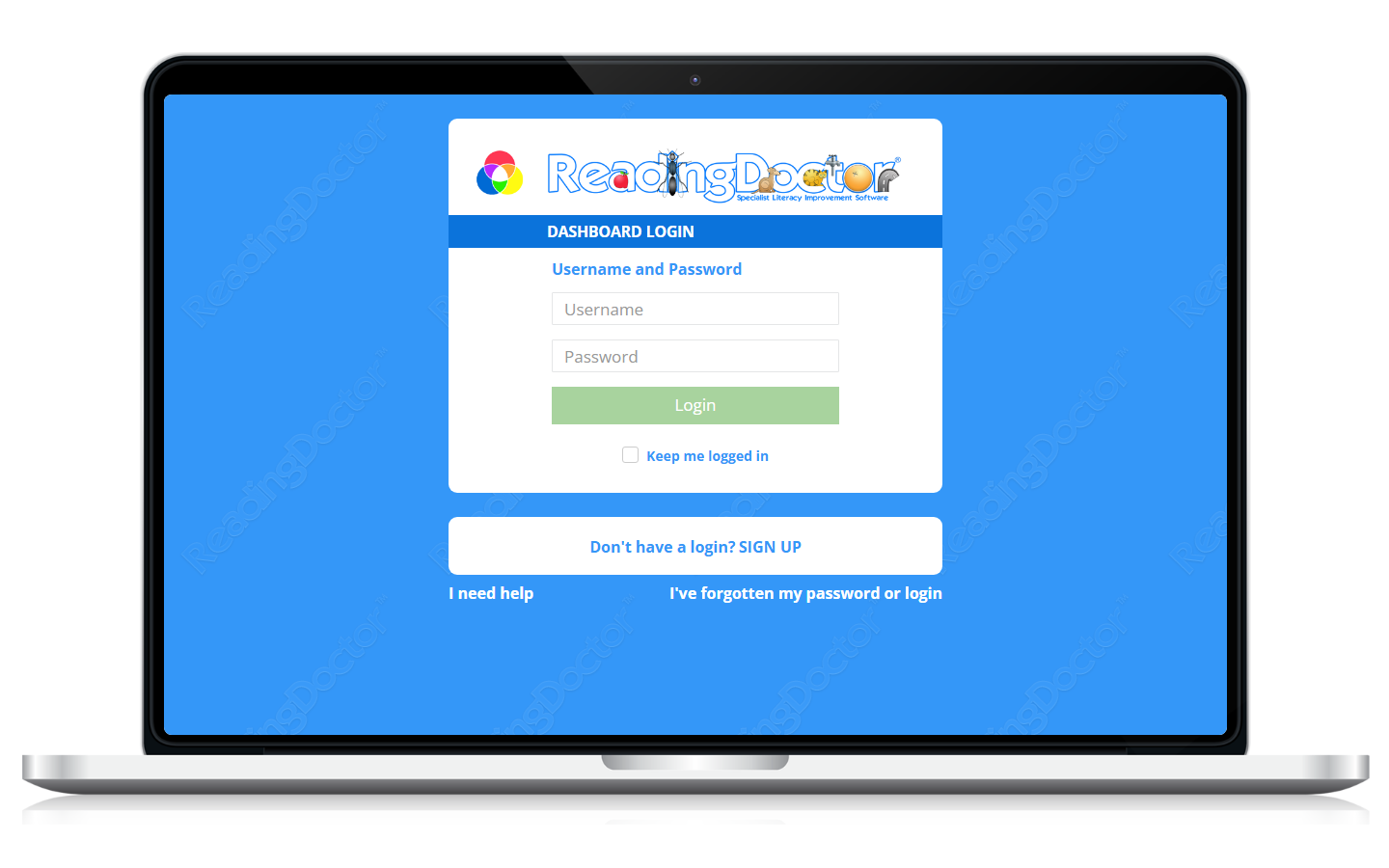
- Open the Dashboard login page and sign in.
Go to https://dashboard.readingdoctor.com
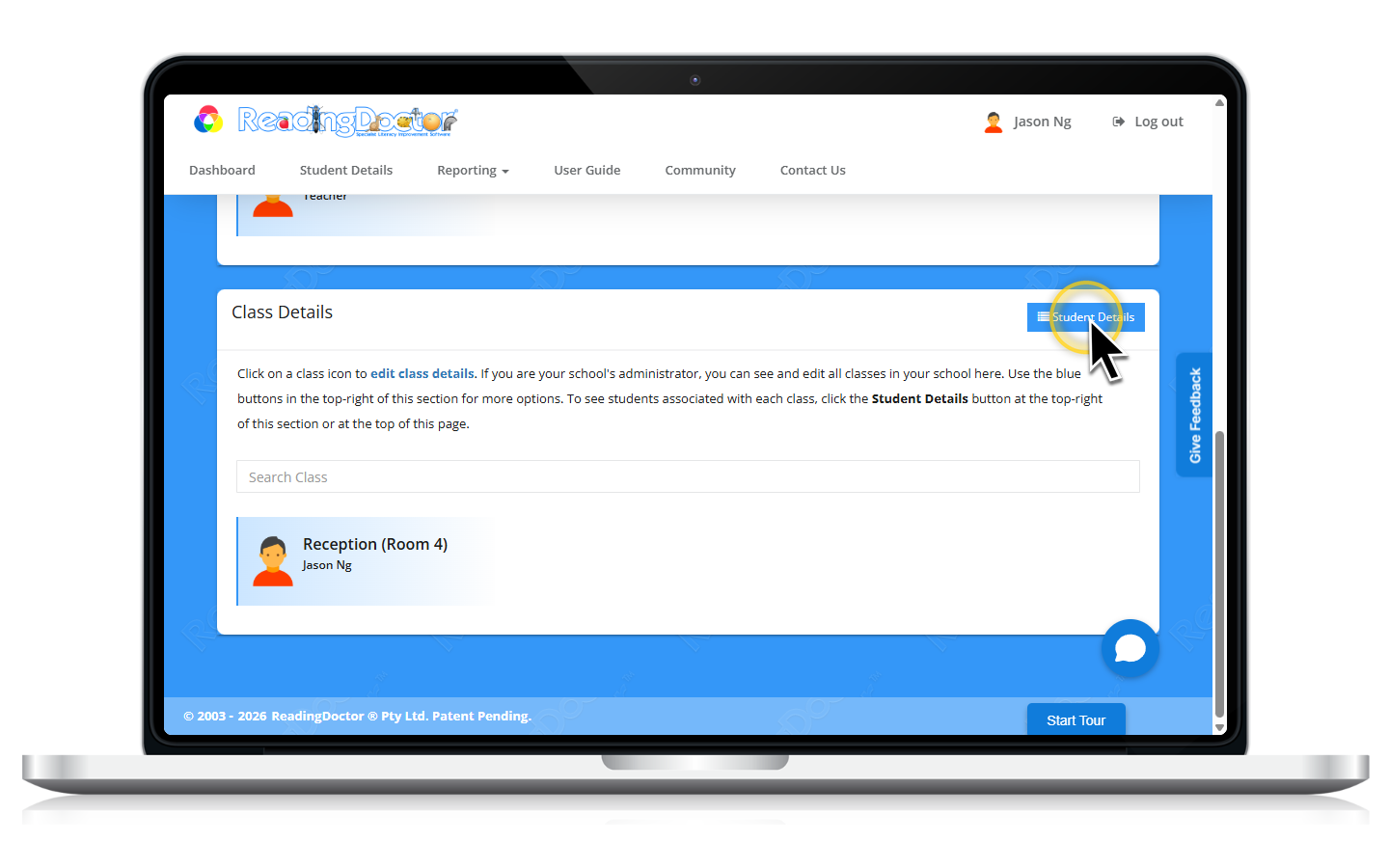
- Open Student Details.
From the dashboard, open your class and click Student Details.
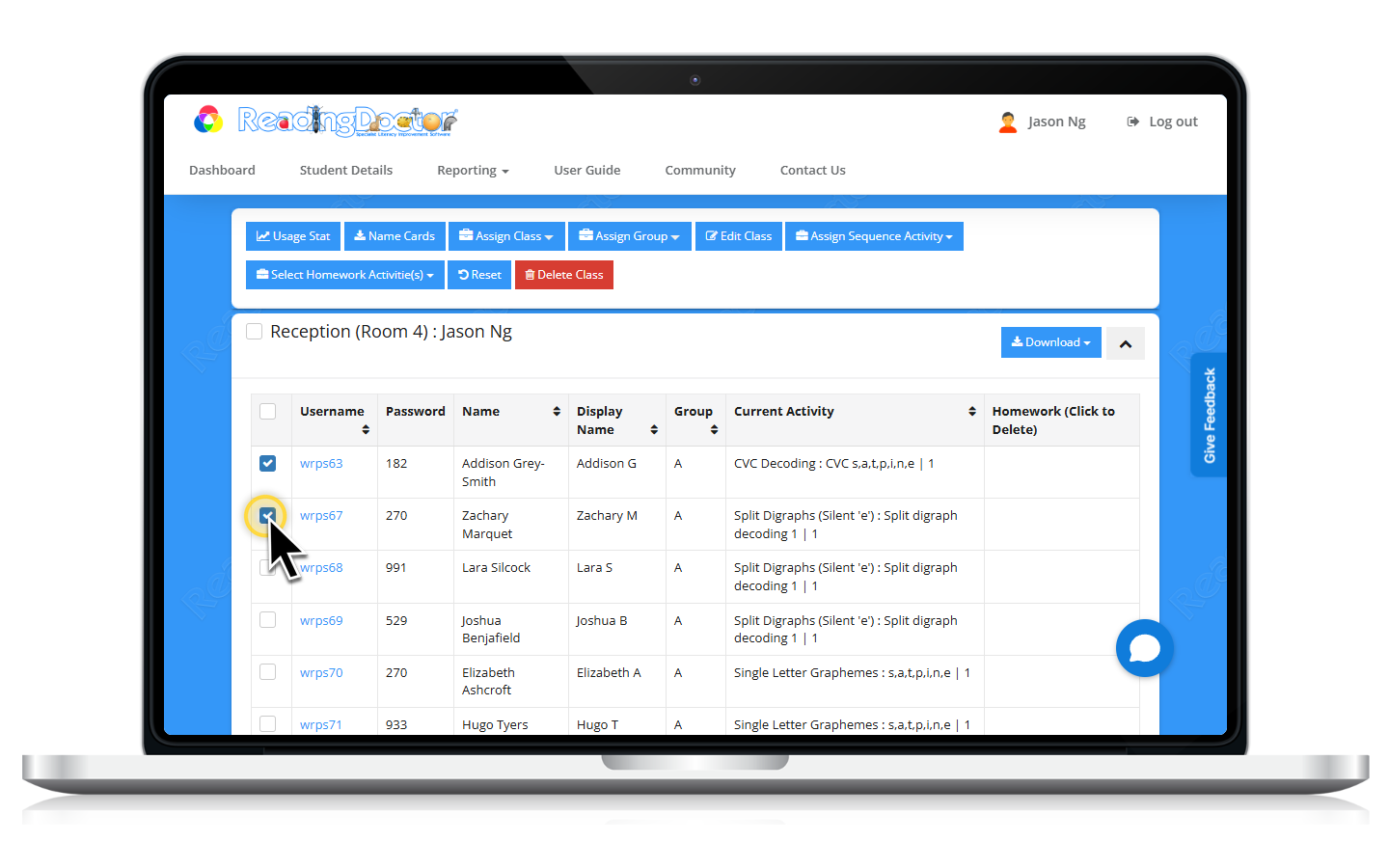
- Select the students.
Tick one or more student checkboxes.
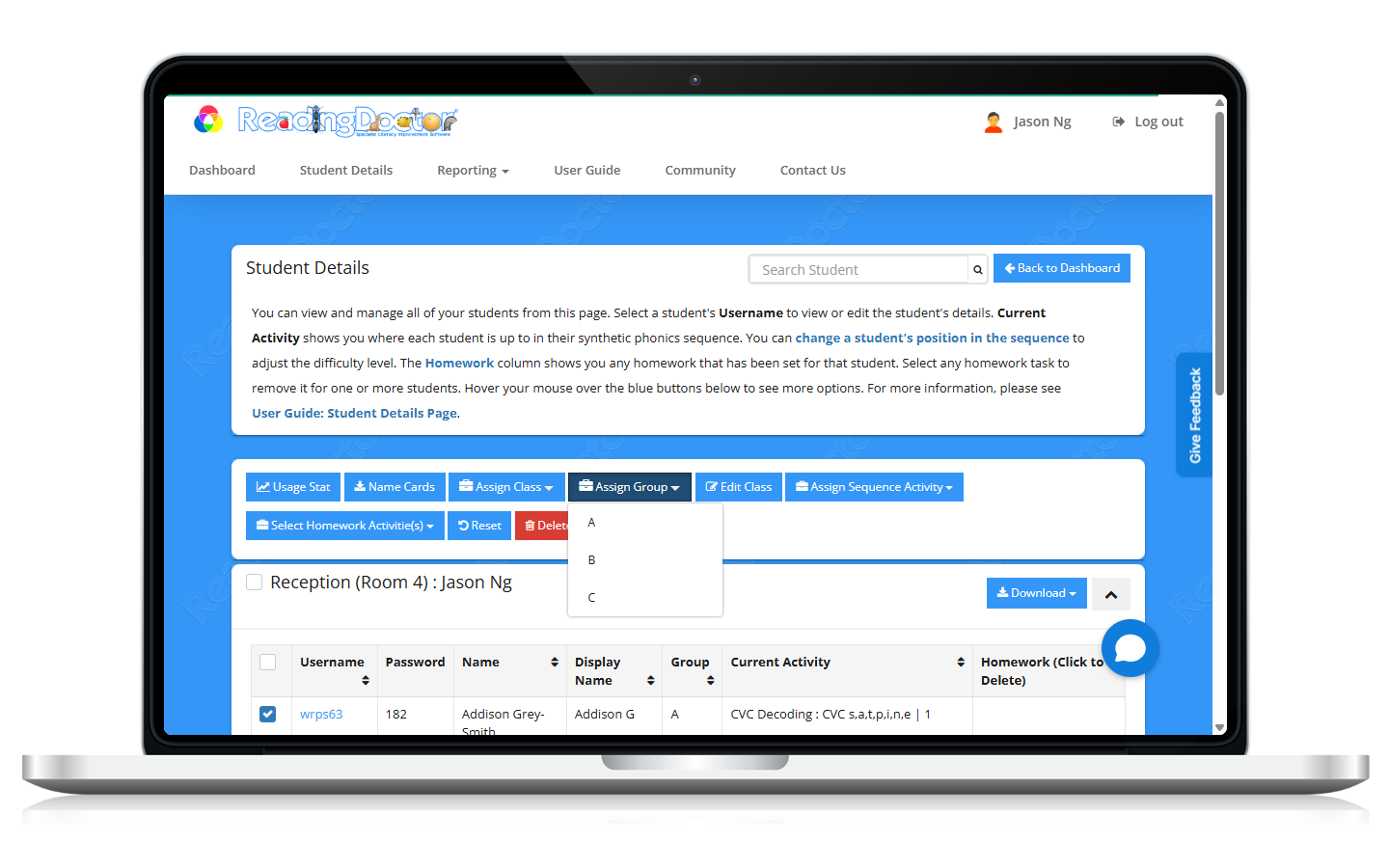
- Click Assign Group and choose the group.
Select A, B, or C from the Assign Group menu.
- Confirm the Group column is updated.
Notes
- You can assign one or multiple students in one action.
- Repeat the same steps to move students to a different group.
Was this article helpful?
That’s Great!
Thank you for your feedback
Sorry! We couldn't be helpful
Thank you for your feedback
Feedback sent
We appreciate your effort and will try to fix the article